 HappyMod
 for PC lets you run the HappyMod app on a Windows computer or a Mac with a free Android emulator. HappyMod is an Android app, but many users want to use it on a computer. A bigger screen makes it easier to browse the catalog, read MOD details, and compare versions. Games can also feel smoother with a keyboard and mouse.
This guide shows how to run HappyMod on a Windows PC or a Mac. It covers what you need, how to set it up, and how to fix the most common problems. Every step is simple, and you do not need any special skills.
Can You Use HappyMod on PC?
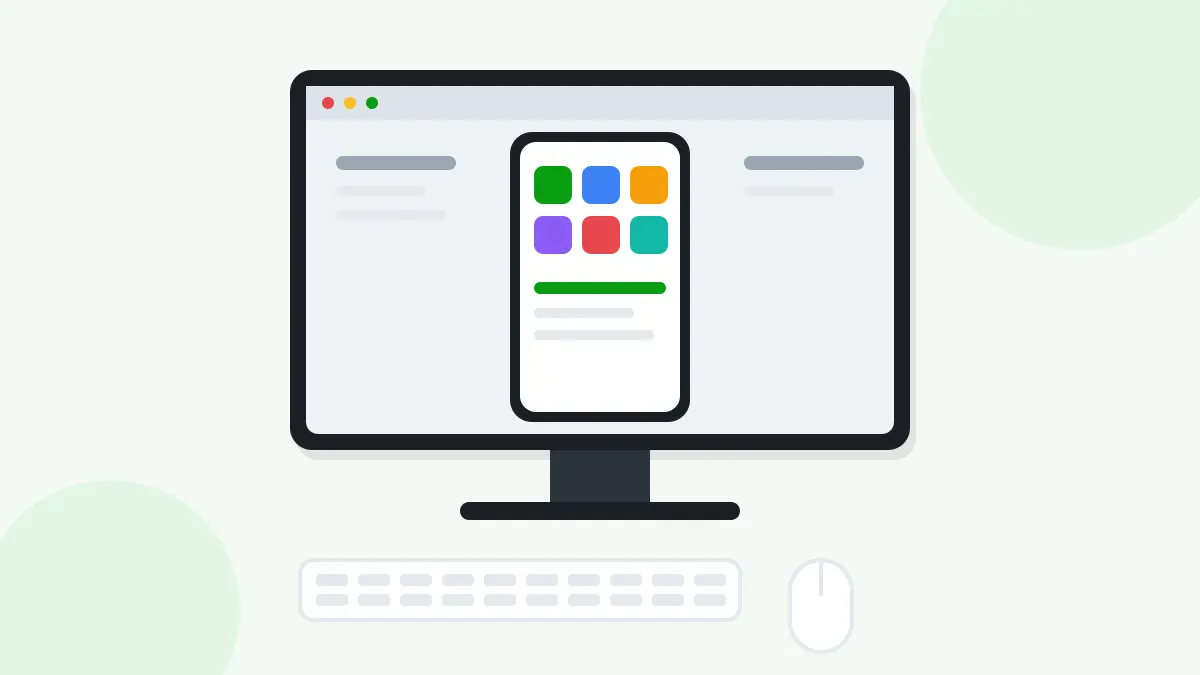
Yes, you can. HappyMod does not come as a Windows or Mac program. It is an APK file made for Android. To use it on a computer, you need an Android emulator.
An emulator is a program that creates a virtual Android phone on your computer. It opens in a window and works much like a real phone. You can install APK files in it, open apps, and play games. HappyMod runs inside this virtual phone just as it would on a real device.
This method is popular because it keeps everything separate from your main system. Your PC files stay apart from the apps inside the emulator.
What You Need Before You Start
Your computer needs enough power to run a virtual phone. Most modern PCs and laptops can do it. Check these points before you begin:
| Item | Recommended |
|---|---|
| Operating system | Windows 10, Windows 11, or a recent macOS |
| Memory (RAM) | 8 GB or more |
| Free storage | At least 10 GB |
| Processor | A modern dual-core or better |
| Virtualization | Turned on in your PC settings |
| Internet | A stable connection for downloads |
More RAM helps games run smoothly. If your PC has only 4 GB, HappyMod itself will still open, but big games may feel slow.
How to Install HappyMod on Windows PC
The setup takes about 10 minutes. Follow these steps in order.
Step 1: Install an Android Emulator
Download a trusted Android emulator for Windows from its official source. Run the installer and follow the steps on screen. When it finishes, open the emulator and let it load for the first time.
Step 2: Download the HappyMod APK
Download the HappyMod APK file on your PC. Save it somewhere easy to find, like your Desktop or Downloads folder. Make sure the download is complete before you move on.
Step 3: Add the APK to the Emulator
Most emulators let you drag the APK file into the emulator window. You can also use the emulator's "Install APK" option and pick the file. The emulator will install it like a normal Android app.
Step 4: Open HappyMod
Find the HappyMod icon on the emulator home screen. Click it to open the app. You can now search for games, browse categories, and read MOD details.
How to Use HappyMod on Mac
Mac users can follow the same idea. Install an Android emulator that supports macOS, then add the HappyMod APK to it.
Newer Macs use Apple chips. Some emulators work better on these chips than others, so check that the emulator supports your Mac model. Once it is set up, the steps are the same as on Windows.
Turn On Virtualization for Better Speed
Virtualization lets your computer run a virtual phone much faster. Many PCs have it turned off by default.
To turn it on, restart your PC and open the BIOS or UEFI settings. Look for an option called Virtualization, Intel VT-x, or AMD-V. Set it to Enabled, save, and restart. The emulator should now run much faster.
If you are not sure how to open these settings, check your PC maker's support page for your model.
Best Emulator Settings for HappyMod
A few small changes can make a big difference:
- Give the emulator at least 4 GB of RAM in its settings.
- Set CPU cores to 4 if your computer has them.
- Choose a screen size like 1280 x 720 for a good balance of speed and clarity.
- Turn on high performance mode if the emulator offers it.
- Keep the emulator updated to get bug fixes and better app support.
These settings help HappyMod open faster and help games run with fewer drops.
Keyboard and Mouse Controls
One big plus of using HappyMod on PC is better control. Most emulators let you map keys to touch buttons on the screen. For example, you can set W, A, S, and D to move in a game.
Look for a keyboard or controls menu in the emulator. Drag keys onto the game screen where you want them. Save the layout, and it will load each time you open that game.
Common HappyMod PC Problems and Fixes
Most PC problems come from low resources or settings. Here are the usual fixes.
HappyMod Will Not Install in the Emulator
Check that the APK download finished. A broken file will not install. Download it again if needed. Also make sure the emulator has enough free storage.
Read next: HappyMod Installation Errors
The Emulator Is Slow or Lagging
Turn on virtualization and give the emulator more RAM and CPU cores. Close other heavy programs on your PC. Lowering the screen resolution in the emulator can also help.
Games Crash on PC
Some games do not support emulators, and some MODs need a certain game version. Try a different MOD version, or clear the app's cache inside the emulator.
Read next: HappyMod Keeps Crashing
Downloads Stop Inside the Emulator
Check your internet connection and the emulator's storage space. Restart the emulator and try again.
Read next: HappyMod Download Problems
Is It Safe to Use HappyMod on PC?
Using an emulator keeps your apps inside a separate virtual phone. This adds a layer between the apps and your main computer files. Still, every APK file is its own software, so stay careful.
Download the emulator only from its official source. Keep your antivirus turned on. Do not enter important passwords in modified apps. These simple habits keep both your PC and your accounts safe.
Frequently Asked Questions
Is there an official HappyMod app for Windows?
No. HappyMod is an Android app. You can run it on Windows by using an Android emulator.
Can I use HappyMod on a Mac?
Yes. Install an Android emulator that supports macOS, then add the HappyMod APK to it.
How much RAM do I need for HappyMod on PC?
8 GB of RAM is a good amount. HappyMod can run with 4 GB, but games will run better with more.
Why is HappyMod slow on my PC?
The most common reason is that virtualization is turned off. Turn it on and give the emulator more RAM and CPU cores.
Do my games save on PC?
Game data saves inside the emulator, just like on a phone. Online saves depend on each game and its account system.
Can I use a keyboard and mouse with HappyMod games?
Yes. Most emulators let you map keyboard keys to on-screen buttons.
Get HappyMod on Your PC Today
Running HappyMod on a computer gives you a larger screen, easier browsing, and better game controls. All you need is an Android emulator and the HappyMod APK file.
Read next: HappyMod APK