 HappyMod
Clearing HappyMod cache is the fastest fix for a slow app, an empty catalog, or an app that keeps freezing. It only removes temporary files.
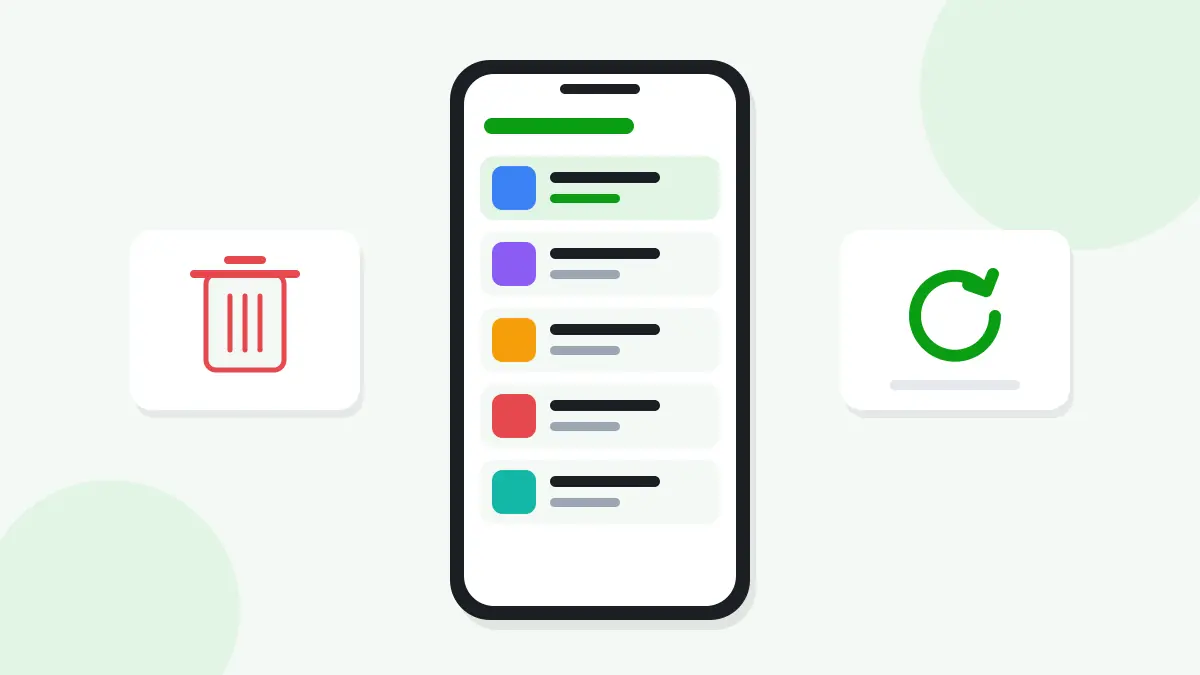
Cache vs Data in HappyMod
| Option | What it removes | Your games |
|---|---|---|
| Clear cache | Temporary images and lists | Not affected |
| Clear data | HappyMod settings and saved lists | Not affected |
Installed games are separate apps, so clearing HappyMod never deletes them.
How to Clear HappyMod Cache
- Open Settings.
- Tap Apps and find HappyMod.
- Tap Storage or Storage and cache.
- Tap Clear cache.
When to Clear HappyMod Data
Clear data if clearing the cache did not help. HappyMod will start fresh like a new install.
Read next: HappyMod Not Opening or Not Working
Paths on Popular Phones
| Brand | Path |
|---|---|
| Samsung | Settings, Apps, HappyMod, Storage, Clear cache |
| Xiaomi | Settings, Apps, Manage apps, HappyMod, Clear data, Clear cache |
| Pixel | Settings, Apps, HappyMod, Storage and cache, Clear cache |
Clear Cache of a MOD Game
If a MOD game lags or shows old content, clear that game's cache in the same way. Do not clear its data unless you have a backup, because this can delete game progress.
Read next: How to Back Up Game Data Before Installing a HappyMod MOD
Frequently Asked Questions
Will clearing cache remove my downloads?
No. Installed games and APK files stay on your phone.
How often should I clear the cache?
Only when HappyMod is slow or shows errors.
Why did the cache grow again?
HappyMod saves images while you browse. That is normal.
Summary
Open Settings, Apps, HappyMod, Storage, and tap Clear cache. Use Clear data only when the cache alone does not fix the problem.